Tweaking Windows 10 for the NuVision TM800W610L Tablet
Apr. 17 2018
With the release of Windows 10, there has been a proliferation of x86 tablet PCs using Intel SoCs. Most of these are cheap devices with fairly low prices- often between $100 and $200. Regardless of where they fall on the spectrum of price, these tablets usually draw from a pool of two or three SoCs. The SoCs use either an Intel Z3XXXX, or an Intel Atom x5-83XX, with 2 or 4 GB RAM, and 32 or 64 GB of eMMC memory. They are overwhelmingly 10.1 inches with a resolution of either 1280x800 or 1920x1200. I was intrigued, to the point of immediately purchasing it, when I saw an 8 inch tablet with these specs priced at the princely sum of $62.
The NuVision TM800W610L is a Windows 10 tablet with an 8 inch screen and no keyboard. It features a metal back, capacitive Window key and feels very nice in the hand. Relevant specifications are below:
| Screen Size | 8 Inches |
| Resolution | 1920x1200. Amazon advertises is as IPS, the OEM does not. |
| CPU | Intel Atom SoC: x5-8300 (1.44/1.83GHZ) |
| RAM | 2GB DDR3 @ 1600MHZ |
| ROM | 32GB eMMC |
| External Storage | MicroSD up to 64GB |
| Power Requirements | 5V/2A |
| External Ports | Mini USB Port, Headphone Jack, MicroSD Slot, Micro HDMI Port |
| CPUZ Bench | 58.2 Single Thread, 234.7 Multithread |
Against my expectations, the biggest issues I have had with this tablet are not related to the hardware. Its performance has been relatively fantastic and I feel that were it slightly more open in terms of software freedom, it could be a powerful mobile tool. The main problem with this device is that it runs Windows 10.
Windows 10 holds this tablet back from its full potential because it uses so many system resources updating itself. The TM800W610L comes with 32GB of memory, 10 of which is used by Windows 10. This number jumps up constantly due to installed updates and downloaded updates. To make things worse, as of 2018, the device will run out of memory before being able to update, leading to a machine with a full drive, non-removable update installation files, and an outdated installation. There is an option to use an external drive to provide enough space to continue the update, but it did not allow the use of the microSD card, nor did it resolve any issues. Before fixing my NuVision tablet it had less than 4GB of space left, and that was with nothing else installed but Windows 10. Add security updates on top of that and it is clear to see that Windows 10 has the potential to become a bloated monster of an operating system. But there is a way to fix it.
This method works best on a fresh tablet, and one where internet access will be restricted or be used for non-essential tasks. The key concept behind this method involves removing and preventing Windows 10 updates.
You will need:
- Windows Update Powershell Module
- W10Privacy
- Access to services.msc
Optional Items:
- Edge Blocker
- Classic Shell
Each step of this method is fairly simple. It essentially boils down to rolling back as many updates as you can (or are comfortable with), preventing Windows from checking for, downloading, and installing updates, then finally installing and configuring each piece of software. Begin by turning off network access to the tablet. This will stop it from downloading any pending updates.
Uninstalling Windows Updates (Can be skipped on a fresh tablet)
- Navigate to Windows Update Settings via Settings>Update&Security>Windows Update>Update History>Uninstall Updates. This will present you with a list of all installed updates. The screenshot below shows this section. My example shows no installed updates because I did this on a fresh tablet and with a disabled Update Installer. Fulfilling either condition will show that your tablet has no installed updates.
- Select and uninstall the updates you want removed. Do not restart until you've removed every update. This should free up some space, but I make no guarantees.

System Tweaks and Preventing Updates
- Extract W10Privacy to any location. Extract the Windows Update Powershell Module into a PSWindowsUpdate subfolder within the main W10Privacy folder. Run the W10Privacy executable with administrator privileges. After running through a few processes, mostly checking the system for its current setting, the program will open a window like the one below:
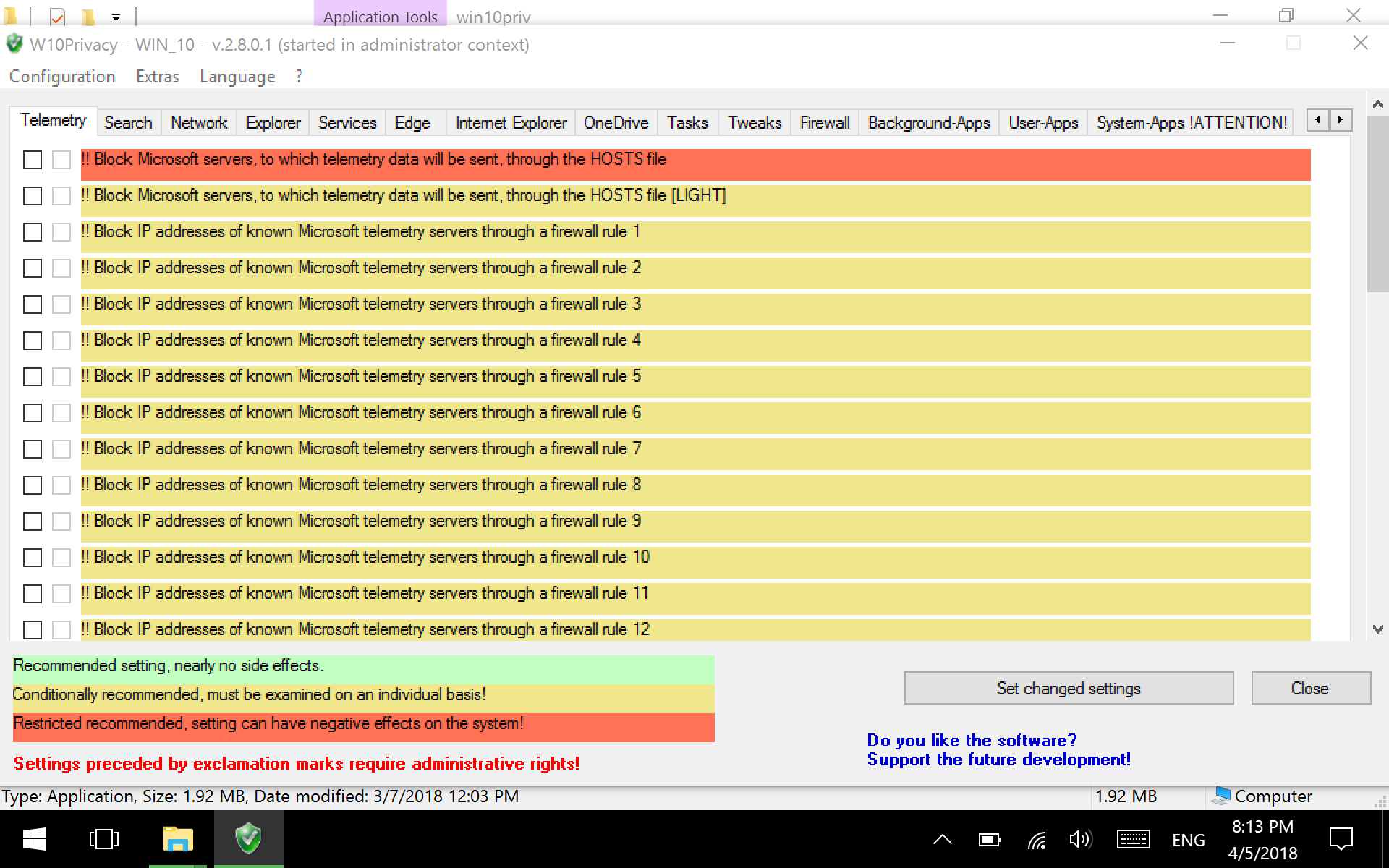
- From here go to Extras>Windows Updates (search/download/installation) and make sure the first four are checked. Click 'Set changed settings' and then click 'Close' after the box pops back up. From there you can go through each tab and select the settings that appeal to you. I mostly locked down firewall traffic and deleted default apps. When you have chosen all the tweaks you would like, click 'Set changed settings', which will activate your chosen options and restart W10Privacy to show you which ones stuck and which ones did not (if you opened the program in user mode instead of administrator mode, options with the double exclamation mark will not activate).
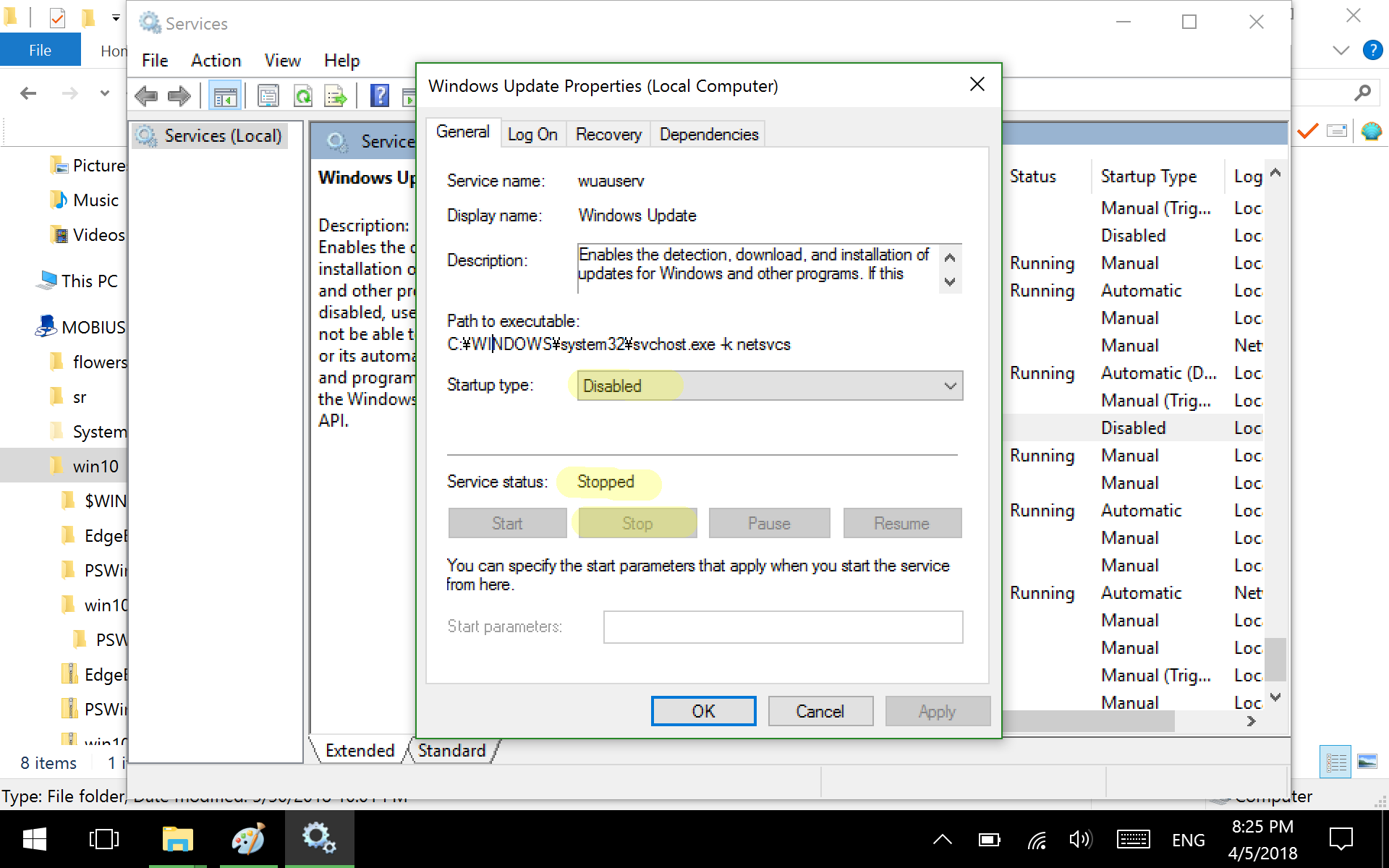
- Navigate to services.msc and find two services: 'Windows Modules Installer' and 'Windows Update'. Go ahead and stop, then disable both. This, combined with W10Privacy, should completely stop your tablet from searching for and installing updates.
- Install the browser of your choice (I suggest Brave) and run Edge Block. As the name implies, it blocks the tablet from using the Edge browser. When used in Administrative mode, it blocks Edge from running on all accounts.
- Optional: Install and configure the Classic Shell to convert the Start Menu from the Windows 10 default to that of a previous Windows Start Menu as well as tweak Explorer settings.
After completing these procedures on my own tablet, it's easier to use, it runs faster, and has more space available on it. Because I don't use it on the internet, and the Wi-FI isn't great in the first place, there is no danger from cutting out Windows Update.
Links:
Windows Update PowerShell Module
W10Privacy
Edge Blocker
Classic Shell